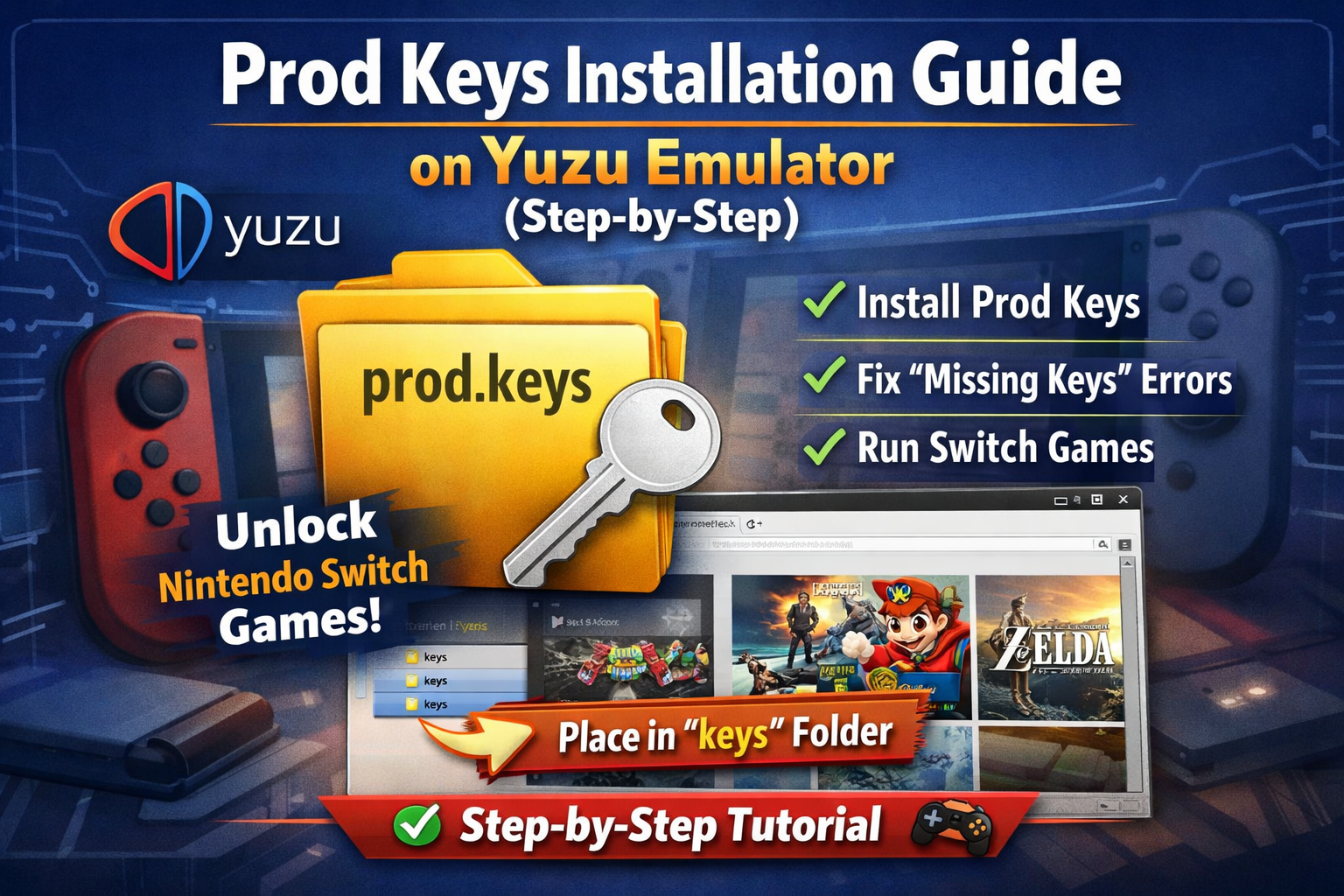
Installing prod keys in Yuzu emulator is one of the most important steps if you want to run Nintendo Switch games without errors. Many users struggle with game crashes or “missing keys” issues simply because the keys are not installed properly.
This guide will walk you through the exact process of installing prod.keys in Yuzu, along with tips to avoid common mistakes.
What Are Prod Keys in Yuzu?
Prod keys (production keys) are encryption files used by the Nintendo Switch system. The Yuzu Emulator requires these keys to decrypt game data.
In simple terms:
- Prod keys = access to game data
- No keys = games won’t run
These keys work alongside firmware to create a working environment inside the emulator.
Why You Need to Install Prod Keys
Without installing prod keys correctly, Yuzu cannot function properly. Here’s why they are essential:
- Enable game decryption
- Fix “missing keys” errors
- Improve compatibility with newer games
- Allow NSP and XCI files to run
Even if your game files are perfect, they won’t launch without valid prod keys.
Requirements Before Installing Prod Keys
Before you start, make sure you have:
- Latest version of Yuzu Emulator
- A valid prod.keys file
- Matching Nintendo Switch firmware
- Basic system compatibility
Important Tip:
Firmware and prod keys must match in version. If they don’t, you may face crashes or launch errors.
👉 Get the latest Switch Firmware
Yuzu Keys Folder Location
To install prod keys, you need to place them in the correct folder.
Default Keys Folder Paths:
- Windows:
C:\Users\YourUsername\AppData\Roaming\yuzu\keys - Linux:
~/.local/share/yuzu/keys - macOS:
~/Library/Application Support/yuzu/keys
If the folder does not exist, you can create it manually.
How to Install Prod Keys in Yuzu Emulator
Follow these steps carefully to complete the installation:
Step 1: Open Yuzu Emulator
Launch the emulator on your system.
Step 2: Open Yuzu Directory
- Click on File
- Select Open Yuzu Folder
This will take you to the main directory.
Step 3: Find or Create the Keys Folder
- Look for a folder named keys
- If it’s missing, create a new folder and name it keys
Step 4: Add the Prod Keys File
- Copy your prod.keys file
- Paste it inside the keys folder
Make sure:
- The file name is exactly
prod.keys - It is not inside another folder
Step 5: Restart Yuzu
Close and reopen the emulator so it can detect the keys.
How to Check If Prod Keys Are Working
After installation, you should verify that everything is set up correctly.
Solution 1: Launch a Game
- If the game runs → keys are working
- If errors appear → something is wrong
Solution 2: Check Yuzu Logs
Look for messages like:
- “Keys loaded successfully” → correct setup
- “Missing prod.keys” → file not detected
Common Errors and Fixes
I have mentioned some of the errors and fixes user mostly encounter. But, If you want full guidance and solution:
👉 Solve all sort of error, bugs, issues and keys not working problems
Here are the most common problems users face:
1. Yuzu Not Detecting Prod Keys
Cause: Wrong location or incorrect file name
Fix: Place prod.keys inside the correct keys folder
2. Games Not Launching
Cause: Firmware mismatch
Fix: Update both firmware and keys
3. Encryption Errors
Cause: Outdated keys
Fix: Use the latest version of prod.keys
4. Keys Folder Missing
Cause: Folder not created automatically
Fix: Manually create a folder named keys
Prod Keys vs Title Keys
Understanding the difference helps avoid confusion:
- Prod Keys: Required for system-level decryption
- Title Keys: Used for specific games
For most setups, installing prod.keys is enough to get started.
Best Practices for Yuzu Setup
To ensure smooth performance:
- Keep prod keys updated
- Match firmware and keys versions
- Restart Yuzu after every change
- Avoid editing the keys file
- Keep a backup of working keys
These small steps can save you hours of troubleshooting.
Safety Tips
While prod keys are just data files, downloading them from untrusted sources can be risky. Always make sure you are using clean and safe files to avoid errors or security issues.
If you need reliable resources, you can download properly tested and updated keys and firmware from a trusted source like switchkeyshub.com
In a Nutshell
Installing prod keys in the Yuzu Emulator is a simple but critical step. Once properly installed, it allows the emulator to decrypt and run games without issues.
Quick recap:
- Place prod.keys in the keys folder
- Match firmware version
- Restart Yuzu
- Test with a game
By following this guide, you can avoid common errors and enjoy a smooth gaming experience.